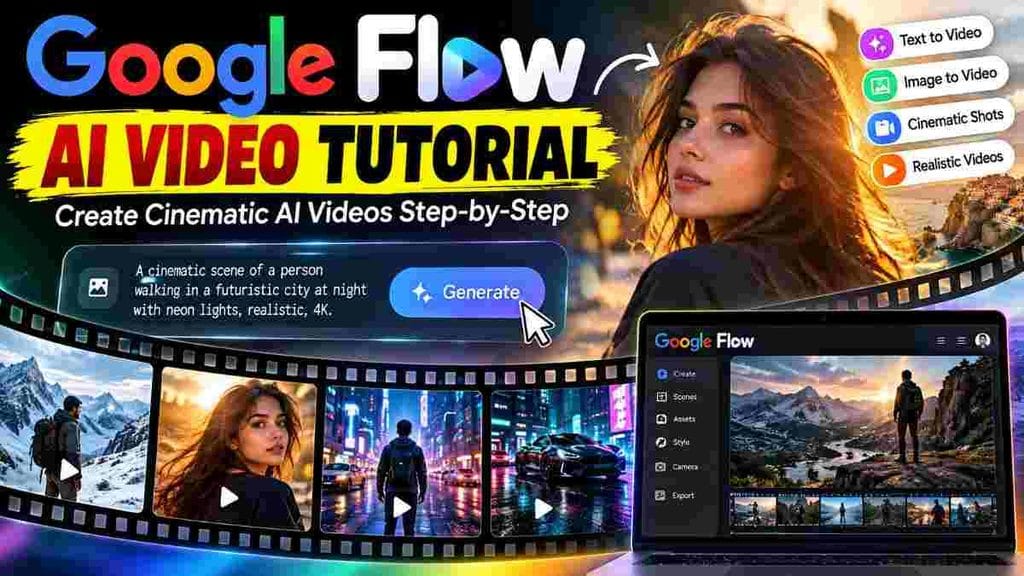
Google Flow AI Video Tutorial is one of the easiest ways to learn how to create cinematic videos with artificial intelligence. Google Flow is designed to help creators turn ideas, images, and text prompts into AI-generated video scenes while giving them tools to build and refine a complete visual story.
If you are a beginner and want to learn how to use Google Flow AI, this guide will walk you through the process from opening Flow to writing prompts, generating scenes, using reference images, creating cinematic shots, and improving your final video.
Quick Answer: Google Flow is an AI filmmaking and video creation tool from Google. You can use natural-language prompts and supported reference images to create and develop video scenes. The quality of your results depends heavily on the clarity and detail of your prompts.
What Is Google Flow AI?
Google Flow is Google’s AI-powered creative filmmaking tool built to help users create visual stories with generative AI. Instead of manually producing every visual element, creators can describe the scene they want and use AI to generate video content.
The idea is different from traditional video editing. Normally, you record footage first and then edit it. With an AI video generator such as Flow, you can begin with an idea and develop the visual scene from a text description or supported reference material.
This makes Google Flow particularly useful for creators who want to experiment with cinematic storytelling, short-form videos, social media content, concept videos, product visuals, and other creative projects.
Why Use Google Flow for AI Video Creation?
AI video creation is becoming increasingly useful for creators because it can reduce the amount of traditional production work required to visualize an idea.
Create video scenes from detailed prompts.
Experiment with cinematic camera movements.
Use images as visual references when supported.
Create multiple visual concepts quickly.
Develop short-form social media video ideas.
Build scenes for storytelling and creative projects.
However, AI does not automatically turn a weak idea into a great video. Your prompt, reference material, scene design, and editing decisions still matter. Learning how to write effective prompts is therefore an important part of this Google Flow AI video tutorial.
Google Flow AI Video Tutorial: Getting Started
Before creating your first AI video, make sure you have access to Google Flow and a compatible Google account or plan. Availability and features can change over time, so the options visible in your account may differ from screenshots or older tutorials.
Once you have access, open Google Flow and explore the main creation interface. Look for the option to start a new project or create a new scene.
Step 1: Start a New AI Video Project
The first step is to create a new project. Think about the video you want to make before entering your prompt.
For example, instead of simply writing:
A man walking in a city.
create a more descriptive prompt:
A cinematic shot of a young man walking through a busy modern city at night, neon lights reflecting on wet streets, realistic skin texture, natural movement, shallow depth of field, subtle handheld camera movement, dramatic cinematic lighting, photorealistic details, vertical 9:16 composition.
The second prompt provides considerably more information about the environment, subject, lighting, camera behavior, and visual style.
Step 2: Write a Better Google Flow AI Video Prompt
Prompt writing is one of the most important skills when using AI video generators. A useful prompt should describe what the model needs to understand rather than filling the prompt with unnecessary words.
A practical structure for a cinematic AI video prompt is:
Subject + Action + Environment + Camera + Lighting + Style + Motion + Aspect Ratio
For example:
Subject: A futuristic sports car Action: Driving at high speed Environment: Rainy city street at night Camera: Low-angle tracking shot Lighting: Neon reflections and headlights Style: Photorealistic cinematic commercial Motion: Smooth tracking movement Format: Vertical 9:16
Combining these elements gives the AI a clearer description of the intended scene.
Step 3: Use Reference Images
Reference images can be useful when you want the generated scene to follow a particular visual direction. Depending on the available Flow features, you may be able to provide an image that helps guide the appearance of a subject, environment, or visual concept.
For example, a reference image can help establish the appearance of a character or object. You should still describe the intended action and environment in the prompt instead of assuming the image will communicate everything.
A strong workflow is to combine a clear reference image with a precise motion and camera prompt.
Step 4: Create Cinematic Camera Movements
Camera movement can make a major difference in AI-generated video. Instead of asking only for a static scene, describe how the camera should behave.
Some useful camera terms include:
Slow dolly-in
Tracking shot
Low-angle shot
High-angle shot
Wide establishing shot
Close-up
Over-the-shoulder shot
Slow camera push
Orbiting camera movement
Handheld cinematic movement
Don’t add five different camera movements to one short scene unless you specifically want chaotic motion. One clear camera instruction is often easier for an AI video model to interpret.
Step 5: Create Vertical 9:16 AI Videos
If your target platform is Instagram Reels, YouTube Shorts, or similar vertical platforms, plan the composition for a portrait format.
Include vertical 9:16 in your creative instructions when appropriate and keep the main subject inside the central safe area. This helps reduce the chance that important visual elements are positioned too close to the edges.
For social media videos, the first few seconds are particularly important. Start with an interesting visual rather than spending the opening seconds on unnecessary establishing footage.
Step 6: Generate Multiple Versions
One of the biggest mistakes beginners make is expecting the first AI-generated result to be perfect.
AI video generation is often an iterative process. Generate a scene, inspect the result, identify the problem, and modify the prompt.
If the character movement looks unnatural, improve the action description. If the camera is too aggressive, simplify the camera instruction. If the environment looks wrong, describe the location more specifically.
Pro Tip: Don’t rewrite the entire prompt every time. Change one important variable at a time so you can understand which instruction improved or damaged the result.
Google Flow AI Video Prompt Example
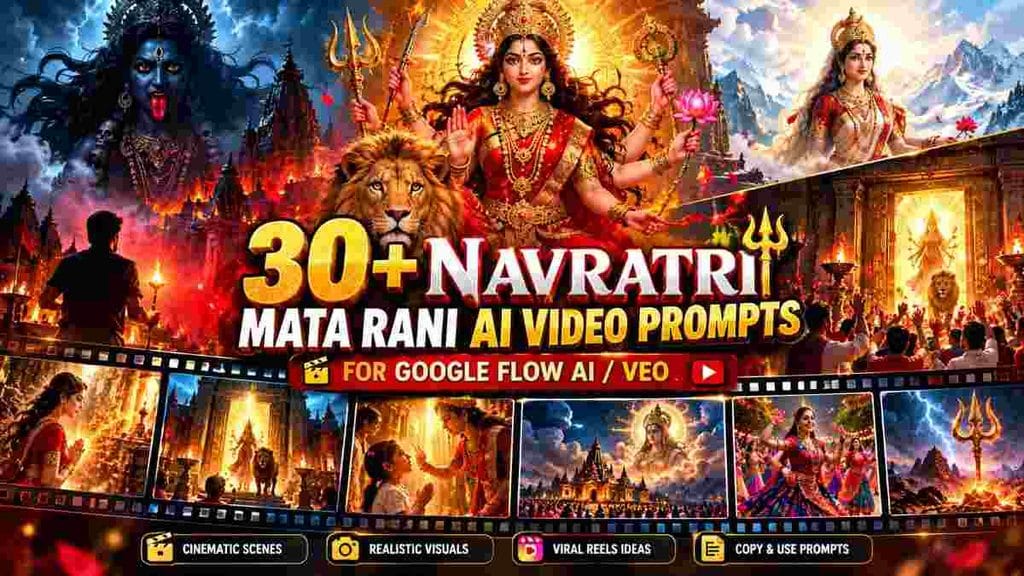
30+ Navratri & Mata Rani Google Flow AI Video Prompts
Create cinematic Navratri and Mata Rani AI videos using these Google Flow
AI prompts. Tap any prompt below to open it, then use the Copy Prompt
button to copy the complete prompt instantly.
🔥 Prompt #1 – Maa Kali Giant Shadow
A cinematic night scene in an ancient Indian village during Navratri. A young devotee slowly walks on a deserted temple road holding a glowing diya. Suddenly an enormous divine shadow of Maa Kali appears behind him, covering the temple walls and the entire street. The devotee slowly turns around in shock. Maa Kali emerges dramatically through dense red smoke, powerful divine aura, traditional appearance, glowing temple lamps, wind moving clothes and hair naturally, intense devotional atmosphere. Camera slowly pulls backward revealing her gigantic divine presence. Photorealistic, cinematic lighting, realistic human movement, volumetric smoke, dramatic shadows, ultra detailed, 9:16 vertical, continuous 8-second shot.
🦁 Prompt #2 – Maa Durga Sher Par Sawar
Early morning in a beautiful ancient Indian temple surrounded by mountains. Thick golden mist covers the temple stairs. Suddenly Maa Durga majestically emerges through the mist riding a powerful realistic lion. The lion walks slowly toward the camera while devotees on both sides fold their hands in devotion. Flower petals fall from the sky, temple bells swing naturally, warm sunrise rays illuminate Maa Durga’s divine aura. Low-angle tracking camera slowly moves backward as the lion approaches. Photorealistic, highly detailed, cinematic devotional scene, natural motion, 9:16 vertical, 8 seconds.
🙏 Prompt #3 – Mata Rani Walking Toward Devotee
A lonely devotee sits crying on the stairs of an ancient Mata temple at night. Hundreds of diyas glow around him. Suddenly a beautiful divine light appears inside the temple. Mata Rani slowly walks out of the glowing doorway toward the devotee. He looks up emotionally and folds his hands. Mata Rani gently raises her hand to bless him. Flower petals float naturally through the air, soft golden divine rays, emotional devotional atmosphere. Slow cinematic camera push-in, realistic facial emotions and movement, photorealistic, 9:16 vertical, 8 seconds.
✨ Prompt #4 – Girl to Maa Durga Transformation
A young Indian woman wearing a simple traditional red saree stands inside an ancient temple during Navratri, eyes closed and hands folded in prayer. Strong divine wind suddenly begins moving her saree and hair. Golden particles swirl around her body. She slowly transforms into a majestic divine Maa Durga-inspired form with ornate traditional crown, rich red attire and radiant golden aura. A powerful lion emerges from glowing mist behind her. Camera circles smoothly around the transformation, dramatic temple lighting, photorealistic face, realistic transformation, cinematic VFX, 9:16 vertical, 8 seconds.
😱 Prompt #5 – Maa Durga Idol Comes Alive
Inside a huge beautifully decorated Navratri pandal, hundreds of devotees pray before a magnificent Maa Durga idol. Suddenly the idol’s eyes slowly open and begin glowing softly. The devotees look up in complete astonishment. Maa Durga gently raises one hand and gives a divine blessing. Temple bells begin swinging, flowers fall from above and warm golden light fills the entire pandal. Camera slowly pushes toward Maa Durga’s face before pulling back to reveal the shocked devotees. Photorealistic cinematic devotional scene, realistic crowd reactions, 9:16 vertical, 8 seconds.
🛕 Prompt #6 – Temple Door Mata Rani Reveal
A massive ancient temple stands on top of a mountain at night during Navratri. Hundreds of diyas illuminate the stairs. The giant temple doors suddenly begin opening slowly by themselves. Powerful golden divine light bursts through the doorway. As the light fades slightly, Mata Rani is revealed standing majestically inside with a lion beside her. Devotees immediately bow down. Flower petals fly through the air as temple bells ring. Camera starts close to the devotees and smoothly rises upward revealing Mata Rani and the grand temple. Photorealistic, epic cinematic scale, divine atmosphere, 9:16 vertical, 8 seconds.
🦁 Prompt #7 – Maa Durga & Lion Walking
Maa Durga walks majestically through an ancient temple courtyard at sunrise with a huge realistic lion walking calmly beside her. Devotees stand on both sides showering red rose petals. The lion looks directly toward the camera and gives a powerful roar while Maa Durga continues walking peacefully. Golden sunlight passes through temple pillars creating dramatic rays. Low-angle camera tracks backward smoothly in front of them. Hyper-realistic lion fur, natural walking motion, cinematic devotional atmosphere, ultra detailed, 9:16 vertical, 8 seconds.
🔱 Prompt #8 – Trishul Divine Reveal
Extreme close-up of a giant ancient Trishul planted in the ground outside a mountain temple during a violent stormy night. Lightning strikes behind the temple and the Trishul begins glowing with powerful golden-red divine energy. The ground vibrates and dust rises. Camera rapidly pulls backward as a majestic divine silhouette of Maa Durga becomes visible behind the glowing Trishul. Clouds separate and moonlight illuminates the temple. Cinematic camera movement, photorealistic environment, dramatic lightning, realistic dust physics, epic devotional atmosphere, 9:16 vertical, 8 seconds.
❤️ Prompt #9 – Mata Rani Blessing Devotee
An emotional young Indian devotee kneels before Mata Rani inside a peaceful ancient temple, tears visible in his eyes. Mata Rani gently places her blessing hand above his head. A warm golden divine light spreads from her hand around the devotee. His emotional expression slowly changes from sadness to peaceful happiness. Diyas flicker naturally and flower petals softly fall around them. Slow close-up camera movement capturing both faces, realistic emotions, beautiful cinematic lighting, photorealistic devotional atmosphere, 9:16 vertical, 8 seconds.
👣 Prompt #10 – Mata Rani Divine Footsteps
A mysterious empty temple road at night covered with red flower petals and glowing diyas. No person is visible. Suddenly divine golden footprints begin appearing one by one on the ground as if an invisible divine presence is walking toward the temple. Each footprint glows softly. The camera follows the footprints from a very low angle. When they reach the temple stairs, brilliant golden light fills the entrance and the silhouette of Mata Rani slowly appears. Mystical devotional atmosphere, cinematic suspense, photorealistic, smooth continuous camera movement, 9:16 vertical, 8 seconds.
☁️ Prompt #11 – Giant Maa Durga in Sky
Thousands of devotees celebrate Navratri outside a massive illuminated temple at night. Suddenly the clouds above begin rotating and glowing red and gold. Everyone stops and looks toward the sky. An enormous divine vision of Maa Durga slowly appears among the clouds, towering above the temple. Devotees fold their hands and bow emotionally. Camera tilts dramatically from the crowd upward toward the gigantic divine figure in the sky. Epic cinematic scale, realistic clouds, volumetric divine light, photorealistic, 9:16 vertical, 8 seconds.
🪔 Prompt #12 – Diyas to Maa Durga Reveal
Top-down cinematic shot of hundreds of glowing diyas arranged randomly on a dark temple floor. Suddenly the diyas begin moving magically across the floor, forming a beautiful sacred pattern. Camera slowly rises higher as thousands of lights form a majestic visual silhouette inspired by Maa Durga. Golden particles rise from every diya and fill the air. The camera smoothly rotates while revealing the complete glowing formation. Photorealistic flames, realistic light reflections, cinematic devotional atmosphere, 9:16 vertical, 8 seconds.
🌺 Prompt #13 – Flowers to Mata Rani
Thousands of red rose petals swirl violently through the air inside an empty ancient temple. The petals slowly gather together in the center, creating a human-shaped divine silhouette. With a brilliant burst of golden light, the petals transform into a majestic Mata Rani-inspired divine figure. Remaining flowers fall gently around her as she raises her hand in blessing. Camera circles smoothly around the transformation. Photorealistic petals, cinematic transformation VFX, realistic physics, golden temple lighting, 9:16 vertical, 8 seconds.
⚡ Prompt #14 – Maa Kali Lightning Entry
A dramatic ancient temple courtyard during a powerful thunderstorm at midnight. Heavy wind moves flags and trees while lightning flashes across the sky. Suddenly an intense lightning strike hits the ground in front of the temple creating smoke and dust. From inside the smoke emerges a powerful divine Maa Kali-inspired figure with intense glowing aura. Camera moves backward rapidly while revealing her dramatic entrance. Red temple lights, realistic rain and wind, cinematic lightning, photorealistic textures, powerful devotional atmosphere, 9:16 vertical, 8 seconds.
🏔️ Prompt #15 – Maa Parvati Himalayan Scene
A breathtaking Himalayan landscape at sunrise, snow-covered mountains glowing under golden sunlight. Maa Parvati-inspired divine figure peacefully walks beside a crystal-clear mountain river wearing elegant traditional red attire. Flower petals float gently through the air despite the snowy landscape. She stops, turns toward the camera and gives a peaceful blessing as brilliant sunlight forms a divine halo behind her. Smooth cinematic drone-to-medium-shot transition, photorealistic mountains, natural fabric movement, divine peaceful atmosphere, 9:16 vertical, 8 seconds.
🔱 Prompt #16 – Maa Parvati Divine Transformation
A young Indian woman wearing a simple red saree stands peacefully near an ancient Himalayan temple at sunrise. She closes her eyes and folds her hands. Suddenly strong divine wind begins flowing, golden particles spiral around her body and her appearance transforms into a majestic Maa Parvati-inspired divine form with elegant traditional attire, ornaments and radiant aura. The temple bells begin moving, clouds open behind the mountains and brilliant golden sunlight surrounds her. Camera smoothly circles around during the transformation. Photorealistic, realistic fabric and hair movement, cinematic divine lighting, ultra detailed, vertical 9:16, continuous 8-second shot.
💃 Prompt #17 – Navratri Girl Transformation
A young Indian woman wearing a simple traditional outfit stands alone in a decorated Navratri courtyard. She spins once toward the camera. During the spin, a burst of colorful flower petals and golden particles surrounds her and instantly transforms her outfit into an elaborate traditional Navratri lehenga with beautiful jewelry. She completes the spin and starts performing energetic Garba. Hundreds of glowing diyas and decorative lights illuminate the background. Smooth orbiting camera movement, realistic transformation, natural body movement, photorealistic face, cinematic festival lighting, vertical 9:16, 8 seconds.
💃 Prompt #18 – Grand Garba Night
A spectacular Navratri celebration in a huge traditional Indian courtyard at night. Hundreds of people wearing colorful traditional outfits perform synchronized Garba around a beautifully illuminated central shrine. The camera starts close to one dancer, smoothly moves backward through the dancing crowd and rises slightly to reveal the enormous celebration. Flower petals fall from above, decorative lights glow everywhere and traditional drums create an energetic festival atmosphere. Natural dancing movement, photorealistic crowd, cinematic lighting, realistic fabric physics, vertical 9:16, continuous 8-second shot.
✨ Prompt #19 – Dandiya Magical Transition
Close-up of two traditional Dandiya sticks striking together during a Navratri celebration. At the exact moment they touch, a powerful burst of golden sparkling energy fills the frame. The camera rapidly pulls backward revealing a massive beautifully decorated Garba ground filled with hundreds of dancers performing synchronized Dandiya. Flower petals fly through the air and thousands of festival lights illuminate the scene. Seamless magical transition, energetic camera movement, photorealistic people, realistic motion, cinematic festival atmosphere, vertical 9:16, 8 seconds.
👑 Prompt #20 – Mata Rani Grand Temple Entry
Hundreds of devotees wait outside a magnificent ancient Indian temple decorated for Navratri. Giant temple doors slowly open and brilliant golden divine light pours outside. Through the light, a majestic Mata Rani-inspired divine figure slowly walks down the temple stairs while a powerful lion walks beside her. Devotees immediately fold their hands and shower red flower petals. Camera tracks backward from a low angle while she approaches. Temple bells swing, flags move naturally in the wind, epic cinematic scale, photorealistic, vertical 9:16, 8 seconds.
🦁 Prompt #21 – Lion Roar Maa Durga Reveal
Extreme close-up of a powerful realistic lion standing outside an ancient temple during sunrise. The lion looks directly into the camera and gives a massive roar. As the camera rapidly pulls backward, Maa Durga-inspired divine figure is revealed majestically standing behind the lion surrounded by glowing golden light. Strong wind moves her traditional red attire while flower petals fly across the frame. Low-angle cinematic camera, hyper-realistic lion fur, dramatic sunlight, realistic movement, powerful devotional atmosphere, vertical 9:16, 8 seconds.
🌙 Prompt #22 – Midnight Temple Divine Appearance
An abandoned ancient mountain temple at midnight, illuminated only by hundreds of flickering diyas. A lone devotee slowly walks toward the temple entrance. Suddenly every diya becomes intensely bright at the same moment. Golden light emerges from inside the dark temple and a majestic divine silhouette of Mata Rani slowly becomes visible. The devotee immediately kneels and folds his hands. Camera moves slowly over his shoulder toward the glowing temple entrance. Cinematic suspense, volumetric light, photorealistic environment, vertical 9:16, 8 seconds.
❤️ Prompt #23 – Little Child & Mata Rani
A small Indian child walks barefoot toward a beautifully illuminated Mata temple carrying a single red flower. The child reaches the temple stairs and gently places the flower down. Suddenly warm golden divine light surrounds the child and a compassionate Mata Rani-inspired divine figure appears nearby. She bends slightly and gently places her blessing hand above the child’s head. The child smiles emotionally. Soft flower petals fall around them, cinematic close-up, realistic expressions, warm devotional atmosphere, photorealistic, vertical 9:16, 8 seconds.
🙏 Prompt #24 – Devotee Praying Divine Reveal
A young devotee sits alone inside an ancient temple with closed eyes and folded hands, deeply praying before a small diya. Camera slowly pushes toward his emotional face. Suddenly the diya flame becomes brighter and golden light begins illuminating the wall behind him. Camera smoothly moves around the devotee revealing a majestic Mata Rani-inspired divine presence standing behind him with a peaceful blessing gesture. The devotee slowly opens his eyes as flower petals begin falling. Photorealistic, emotional cinematic reveal, vertical 9:16, 8 seconds.
⚔️ Prompt #25 – Durga & Mahishasura Epic Scene
An epic mythological battlefield under dramatic storm clouds, dust and powerful winds filling the atmosphere. A majestic Maa Durga-inspired divine warrior appears riding a powerful lion, holding a glowing Trishul while facing the imposing Mahishasura figure across the battlefield. The lion roars and charges forward as divine golden energy begins glowing around the Trishul. Camera tracks rapidly beside the lion before swinging around to reveal the massive battlefield. No gore, cinematic mythological action, photorealistic textures, epic scale, dramatic lighting, vertical 9:16, 8 seconds.
😳 Prompt #26 – Giant Mata Rani Statue Comes Alive
Thousands of devotees stand inside a huge Navratri pandal before an enormous beautifully decorated Mata Rani statue. Camera slowly moves toward the statue. Suddenly its eyes gently open and the entire pandal becomes silent. The statue slowly raises one hand into a blessing gesture as brilliant golden light spreads throughout the hall. Devotees look upward in amazement and immediately fold their hands. Red flower petals begin falling from above. Smooth cinematic camera pullback, realistic crowd reactions, photorealistic details, vertical 9:16, 8 seconds.
☁️ Prompt #27 – Mata Rani Descending Through Clouds
A breathtaking ancient temple located high in the Himalayan mountains at sunrise. Devotees stand outside looking toward the sky. Thick golden clouds suddenly separate and brilliant rays of divine sunlight shine downward. A majestic Mata Rani-inspired divine figure slowly descends through the glowing clouds toward the temple, surrounded by floating flower petals and soft golden particles. Camera begins behind the devotees and dramatically tilts upward toward the enormous sky. Epic scale, realistic clouds, volumetric lighting, photorealistic, vertical 9:16, 8 seconds.
⚡ Prompt #28 – Trishul Ground Impact
A deserted ancient temple courtyard during a dramatic thunderstorm. Suddenly a massive glowing divine Trishul descends rapidly from the sky and strikes the ground in the center of the courtyard. A powerful shockwave sends dust and flower petals outward while the ground cracks slightly around the impact point. Golden-red divine energy spreads through the cracks. As the smoke clears, a majestic divine silhouette inspired by Maa Durga becomes visible behind the glowing Trishul. Dynamic low-angle camera, cinematic impact, realistic physics, no gore, photorealistic, vertical 9:16, 8 seconds.
🛕 Prompt #29 – Ancient Temple Mystery
A young Indian traveler holding a small diya slowly enters an ancient abandoned temple hidden deep in a forest at night. The temple is completely dark and covered with old stone carvings. As he walks forward, hundreds of diyas mysteriously ignite one after another, creating a path toward a giant closed door. The door slowly opens by itself and brilliant golden light pours out. Inside the light, a divine Mata Rani-inspired silhouette appears. Camera follows directly behind the traveler, cinematic suspense and reveal, photorealistic, vertical 9:16, 8 seconds.
❤️ Prompt #30 – Emotional Mata Rani Farewell
A beautiful emotional Navratri farewell scene beside a river during golden sunset. A devotee stands with folded hands and tears in his eyes while flower petals float through the air. A radiant Mata Rani-inspired divine presence stands before him and gently raises her hand in blessing. She slowly begins transforming into thousands of glowing golden particles that rise peacefully toward the sky. The devotee continues watching with folded hands as the final golden particles disappear into the sunset. Slow cinematic camera pullback, realistic emotional expression, beautiful reflections on water, photorealistic, vertical 9:16, 8 seconds.
🎬 Create AI Videos with Google Flow
Copy the prompt, open Google Flow and create your viral AI video.
Cinematic aerial drone shot, slowly descending and sweeping forward over a luxury 5-star cattle farm shed, long symmetrical row of BUFFALOES standing in individual feeding stalls with troughs full of dry fruits. Shed walls decorated with warm LED strip lights running along every pillar, wall-mounted split AC units visible on both sides, clean tiled flooring, premium well-lit ambience. Camera glides smoothly from high wide view down to eye-level, revealing the entire length of the khatal. 9:16 vertical, golden warm lighting, hyper-realistic, luxury farmhouse aesthetic.
Copy button available in
10 seconds
Use this prompt to create a cinematic opening shot of a luxury buffalo farm with a smooth aerial camera movement.
Advertisement
🎬 PART 2 PROMPT
Continuing from previous shot, camera pushes into close-up of BUFFALOES eating from troughs overflowing with cashews, almonds, pistachios, walnuts, dried dates and figs. Farmer in white kurta and turban hand-feeding one buffalo. Warm LED wall lights reflecting softly in background, AC unit visible on wall, clean premium shed interior. Slow tracking movement across multiple buffalo faces, shallow depth of field, wet nose and chewing detail visible, hyper-detailed textures, cinematic warm tone, 9:16 vertical.
Copy button available in
10 seconds
This prompt continues the scene with detailed close-up shots of buffaloes eating premium dry fruits.
🎬 PROMPT 3
Ultra-realistic cinematic video, luxurious 5-star livestock farm shed, long row of BUFFALOES standing in individual feeding stalls, each trough overflowing with premium dry fruits — cashews, almonds, pistachios, walnuts, dried dates, dried figs. Farmer in white kurta and turban hand-feeding the animals. Camera slowly pans and pushes into close-up shots of BUFFALO faces eating nuts, wet nose, eyes, chewing motion visible. Warm natural daylight through shed roof, shallow depth of field, smooth handheld tracking movement, 9:16 vertical, viral farm-life aesthetic, hyper-detailed textures on nuts and dry fruits.
Copy button available in
10 seconds
Customize the lighting, camera movement, buffalo count or farm environment according to your AI video style.
Advertisement
🎬 AI Video Prompt
Vertical cinematic video of a dramatic street projection sequence at night. The video opens with a high-angle overhead shot of an empty asphalt street flanked by concrete walls under dim street lighting, where a woman in a light-colored salwar kameez walks forward while casting a long, glowing shadow that transforms into the fierce multi-armed form of Goddess Kali holding a trident. Behind her, a man in a black shirt walks, casting an eerie, demonic shadow with glowing red eyes. As the sequence progresses, the woman’s shadow glows with intense divine light, shifting and emanating mystical energy while mist rolls across the pavement. The lighting combines moody urban streetlamps with the supernatural radiant aura of the divine shadow, creating a high-contrast and dramatic aesthetic. The camera maintains a smooth, steady, overhead tracking movement following them from behind. Ultra HD, 8k resolution, cinematic quality, masterpiece, highly detailed, vertical video format, –ar 9:16
Copy button available in 10 seconds
You can customize the prompt according to your character,
location, lighting and video style before generating the video.
Advertisement
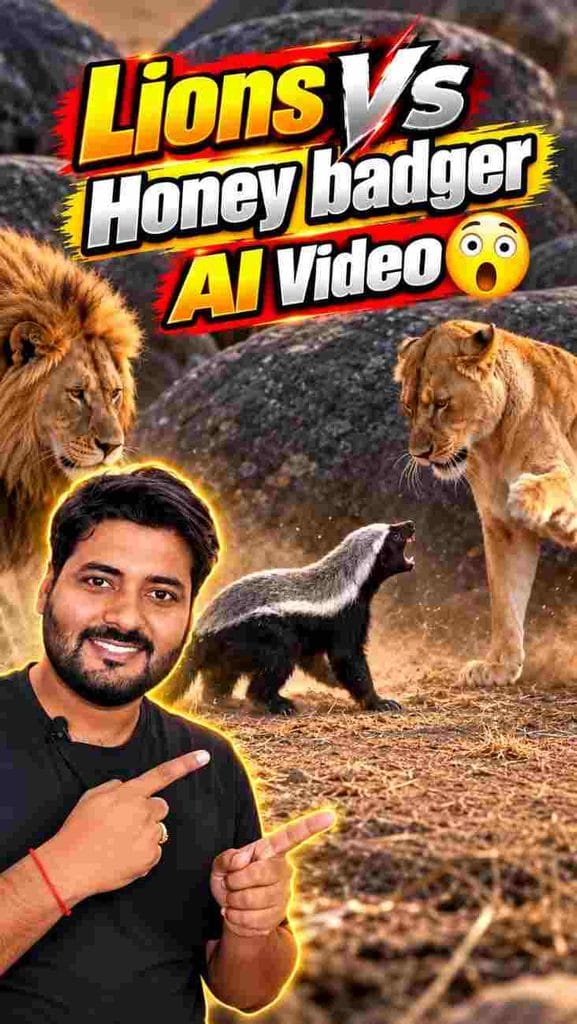
Lion Vs Honey Badger 🦁🔥 Viral AI Prompt
🎬 AI Video Prompt
Cinematic action sequence in an arid African savanna landscape with scattered large dark boulders. An aggressive honey badger with distinct black fur and a wide silver-white stripe down its back confronts a lioness and a large male lion with a thick dark mane. The scene starts with the lioness lunging and trying to swipe at the badger as dry dirt kicks up from the ground. Suddenly, the massive male lion charges in, snaps up the badger in his jaws, and forcefully tosses it through the air. The honey badger flies across the frame and crashes onto the dusty terrain, rolling before coming to a stop on its side. It immediately recovers, springs back onto its feet, turns around, and furiously roars with wide open mouth back at the two lions. The lions back away cautiously in front of the rock pile as the badger holds its ground. Low-angle tracking medium shot capturing the dynamic motion, cinematic warm natural daylight, high contrast shadows, hyper-realistic animal textures, photorealistic documentary style, continuous fluid movement, Ultra HD, 8k resolution, cinematic quality, masterpiece, highly detailed, vertical video format, --ar 9:16
Copy button available in
10 seconds
This prompt is perfect for creating a dramatic wildlife action video with a fearless honey badger facing two lions in a cinematic savanna scene.
Advertisement
🎬 Create AI Videos with Google Flow
Copy the prompt, open Google Flow and create your viral AI video.
Realism is not achieved simply by adding the word "realistic" twenty times to a prompt. That approach is usually useless.
Instead, describe realistic physical details such as natural movement, believable lighting, realistic textures, appropriate depth of field, environmental motion, and consistent proportions.
Avoid unnecessarily complicated prompts. If the model has too many competing instructions, the final output can become inconsistent.
Common Google Flow AI Video Mistakes
1. Using Extremely Short Prompts
A prompt such as "make a cinematic video" gives the model very little creative direction. Add the subject, action, environment, camera and visual style.
2. Adding Too Many Instructions
The opposite problem is also common. A huge prompt containing dozens of unrelated instructions can make the scene less predictable.
3. Changing Everything Between Generations
If you change the subject, camera, lighting, environment and action at the same time, you won't know what caused the improvement or failure.
4. Ignoring Composition
A technically impressive scene can still be useless for social media if the subject is cropped incorrectly or important elements are outside the frame.
5. Expecting AI to Replace Editing
AI generation and video editing are different stages. You may still need to trim clips, arrange scenes, add captions, music, sound effects, transitions and branding before publishing.
Google Flow AI Video for YouTube Shorts
Google Flow can be useful as part of a YouTube Shorts production workflow. Instead of trying to generate an entire story in one long clip, break the concept into smaller scenes.
For example, a 30-second short could be divided into three or four visual scenes. Each scene can have its own prompt while maintaining a consistent story direction.
This approach gives you more control over pacing and makes it easier to replace an individual scene when something goes wrong.
Google Flow AI Video for Instagram Reels
For Instagram Reels, focus on visual hooks, fast storytelling and vertical composition. AI-generated clips can be combined with voiceovers, captions, sound effects and music using a separate editing application when necessary.
Don't confuse visual quality with viral potential. A beautiful AI video can get zero traction if the concept is boring. The idea, hook, pacing and audience relevance still matter.
Google Flow vs Traditional Video Editing
Traditional video production usually requires recording footage, arranging shots and editing the material. AI video generation changes the starting point: you can begin with an idea and generate visual material before traditional editing.
This doesn't mean AI completely replaces cameras, editors or filmmakers. Instead, it provides another production method that can be especially useful for concepts that would be expensive, difficult or impossible to film conventionally.
Is Google Flow AI Video Free?
Access, usage limits, credits and available features can depend on Google's current plans and policies. These details can change, so users should check the current official Google Flow information before assuming that a particular feature or generation limit is free.
If you are planning to use AI video generation regularly, check the current plan details, generation limits and available credits before starting a large project.
Best Tips for Google Flow AI Video Generation
Start with a clear video concept.
Write prompts around one specific scene.
Describe subject movement clearly.
Specify the camera movement when necessary.
Use reference images when they improve consistency.
Keep important subjects away from extreme edges.
Generate multiple versions when needed.
Change one variable at a time while testing prompts.
Edit generated clips before publishing.
Always review AI-generated content for visual errors.
Frequently Asked Questions
What is Google Flow AI?
Google Flow is Google's AI filmmaking and creative video tool that allows users to develop visual scenes using generative AI and natural-language instructions.
How do I use Google Flow AI Video?
Start a project, describe the scene with a detailed prompt, use available reference options when useful, generate the scene, review the output and refine the prompt until the result matches your creative goal.
Can Google Flow create cinematic videos?
Yes. Cinematic results can be created by combining clear scene descriptions with appropriate camera, lighting, environment and motion instructions.
Can I create vertical 9:16 videos?
Vertical video workflows are useful for platforms such as Shorts and Reels. When supported by the current Flow interface, select the appropriate format or clearly specify your intended portrait composition.
Can beginners use Google Flow?
Yes. Beginners can start with simple prompts and gradually learn camera language, scene composition and prompt refinement.
Final Thoughts
Learning Google Flow AI Video is less about finding one magical prompt and more about understanding how to communicate a visual idea clearly. The strongest workflow is simple: create a concept, describe the scene, generate a result, identify the problems, refine the prompt and then edit the successful clips into a finished video.
If you are creating content for YouTube Shorts, Instagram Reels or other social platforms, focus on the idea first and the AI tool second. A powerful tool cannot rescue weak storytelling.
Start with short scenes, experiment with camera movement, use reference images when useful and keep improving your prompts. With practice, Google Flow can become a useful part of an AI video production workflow. Best Ai Tool Want More AI Video Prompts?
Explore more AI video prompts, cinematic ideas and social media video tutorials to improve your AI content creation workflow.
1 thought on “Google Flow AI Video Tutorial: How to Create Cinematic AI Videos Step-by-Step”


kashyapshiva6654@gmail.com